Learning Outcomes
After reading this article, you will be able to describe the digital interface features of the LSAT as delivered via LawHub, including question navigation, flagging, digital annotations, and onscreen timer controls. You will know how to move efficiently between questions, mark items for review, use highlighting and notetaking tools, and manage allotted section time. This will help you work confidently and efficiently on the digital LSAT.
LSAT Syllabus
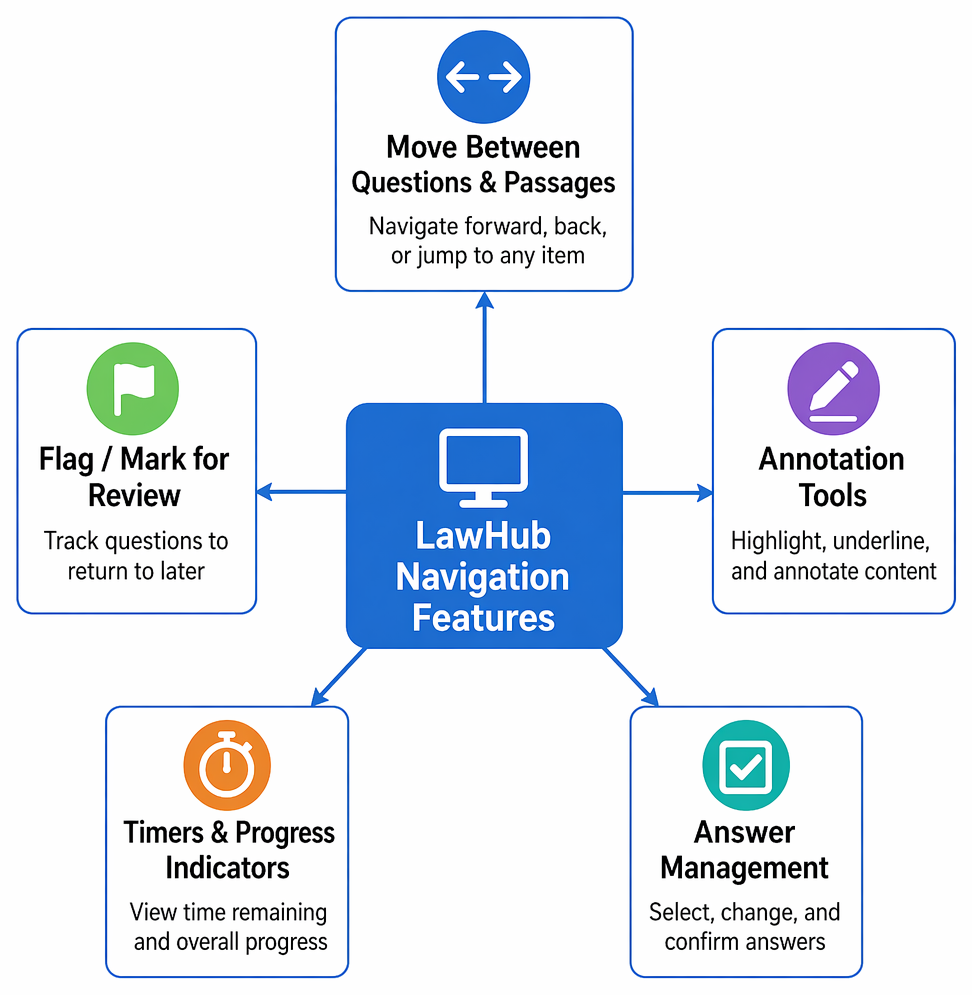
For the LSAT, you are required to understand how to operate the digital LawHub system, as effective navigation and use of the digital interface is essential for maximizing your performance on test day. In your preparation, focus on:
Question-management decision paths classify items by confidence and speed, leading to immediate answering, provisional attempts, flagging, or guessing before later review.
- available navigation features including moving between questions and passages
- use of 'flag' or 'mark for review' tools for tracking questions
- applying digital annotation functions such as highlighting and underlining
- the location and function of timers and progress indicators
- selecting and changing answers efficiently within the digital interface
Test Your Knowledge
Attempt these questions before reading this article. If you find some difficult or cannot remember the answers, look more closely at that area during your revision.
-
Which LawHub feature allows you to revisit questions you wish to check before submitting the section?
- a) Answer choice toggling
- b) Digital flagging tool
- c) Timer display
- d) Passage scroll bar
-
Which annotation tool in LawHub enables you to emphasize key words in a passage?
- a) Digital highlighter
- b) Timer
- c) Flag for review
- d) Jump-to navigation
-
What does the progress bar at the top of the screen show during an LSAT section?
- a) Total time remaining
- b) Number of questions answered and unanswered
- c) Notes and highlights
- d) Written explanations
-
True or False: In LawHub, you can freely move backward and forward within a section at any time before time expires.
Introduction
When sitting the LSAT on LawHub, understanding and controlling the digital interface is required for efficient, error-free test performance. LawHub delivers the exam using a series of onscreen tools that control question navigation, passage interactions, timing, and more. Becoming proficient with these system features in advance will allow you to stay focused on the substance of each question, rather than on worries about tool use or losing your place.
Core Layout and Navigation
The LawHub LSAT interface displays each question or passage on screen, with clear controls to move forward, backward, or to any specific question number. The question list or navigation menu typically runs along the top or left, and allows direct jumps to a question by clicking its number. This is critical for reviewing flagged items or moving between passages in Reading Comprehension.
Key Term: navigation menu
The collection of clickable question numbers or navigation buttons that allow moving directly between any question in a section.
Flagging and Marking for Review
A central tool is the ability to 'flag' or 'mark for review' any question for later attention. A flagged item is visually distinguished in the navigation menu— for example, with a small icon. At the section's end, all flagged items are easily visible for final review. Use flags to manage questions you find hard or want to return to if time remains.
Key Term: flag for review
A digital feature allowing test-takers to mark questions they wish to review again before submitting a section or before time expires.
Digital Annotation Tools
LawHub provides annotation functions such as digital highlighting, underlining, and notetaking. You can highlight text in Reading Comprehension, Logical Reasoning, and passages using color-coded tools, and underline or add marginal notes if this helps focus. Use highlighting to mark key terms, premises, conclusions, and passage structure— never to decorate. Over-highlighting harms more than it helps.
Key Term: digital annotation
The use of onscreen tools (highlight, underline, or notes) within LawHub to emphasize passage text or jot reminders for problem-solving. Key Term: highlighting tool
A LawHub function that allows selection of passage or question text to change its background color, marking it visually for the user.
Answer Selection and Changing
You select your answer by clicking the appropriate radio button or check box, which will highlight your choice. Clicking again or choosing a different option changes your answer— answers can be changed at any time before time is up, as long as you are still within the question or section and have not submitted.
Timer and Progress Bar Display
A prominent digital timer is positioned at the top (or corner) of each section, showing the minutes and seconds remaining. Next to this, the progress indicator displays the number of questions in the section, with answered, unanswered, and flagged questions each visually distinguished. The timer will alert you before time expires (often with a warning at 5 minutes remaining).
Key Term: progress indicator
An onscreen display summarizing answered, unanswered, and flagged questions for the current section.
Section Submission and Review
You may move freely forward and backward within any section while time remains. When finished, submit the section using the appropriate control. You cannot return once a section is submitted or the timer expires— practice confirming your answers and checking flagged questions before submission.
Worked Example 1.1
You are on question 14 of a Logical Reasoning section and are unsure of your answer. What LawHub feature can help you easily revisit this question later before the section ends?
Answer:
Use the 'flag for review' tool to mark question 14. This will display an icon in the navigation menu. Before submitting, use the progress indicator or navigation menu to jump back to flagged questions for final review.
Worked Example 1.2
You want to track which Reading Comprehension questions you have answered and which you haven't. What feature provides this overview?
Answer:
The progress indicator at the top of the screen displays which questions are answered, unanswered, and flagged, so you can verify section completion before submitting.Revision Tip: Practice with the official LawHub interface before your exam. Simulate the digital navigation, annotation, flagging, and review process to avoid preventable errors on test day.
Exam Warning: Never use the browser's back button or reload during the LSAT, as this risks exiting your session. Use only the interface controls provided onscreen.
Key Point Checklist
This article has covered the following key knowledge points:
- LawHub's navigation menu allows direct movement between questions and passages within a section
- The digital 'flag for review' tool highlights questions for later review prior to submission
- LawHub's annotation features support highlighting, underlining, and notetaking for quick marking of key passage elements
- The timer and progress indicator show time remaining, answered/unanswered/flagged status, and help manage section pacing
- Answers can be selected and changed at any time within the section before time expires or you submit
- Section submission is final; you cannot return after time expires or you click 'submit'
Key Terms and Concepts
- navigation menu
- flag for review
- digital annotation
- highlighting tool
- progress indicator