Learning Outcomes
After reading this article, you will be able to explain why correct system setup reduces posting errors, describe common validation checks used in computerised accounting, and interpret typical error messages. You will also be able to state sensible actions to take when an error message appears, including how to correct entries while keeping a clear record of what was changed and why.
ACCA Recording Financial Transactions (FA1) Syllabus
For ACCA Recording Financial Transactions (FA1), you must understand...
- The key features of a computerised accounting system, including cloud storage
- How users locate, display and check accounting data and how data entry errors are dealt with
- Tools and techniques used to process transactions and identify and deal with errors
- Principles of coding when entering accounting transactions within a double-entry system
- Risks to data security and how access to accounting data is controlled
Test Your Knowledge
Attempt these questions before reading this article. If you find some difficult or cannot remember the answers, look more closely at that area during your revision.
-
Which validation check confirms that a customer code entered on a sales invoice is on the customer list?
- A. Range check
- B. Existence check
- C. Check digit test
- D. Control total check
-
True or false? A computerised accounting system can still accept a transaction posted to the wrong expense account even though the trial balance balances.
-
State two examples of “standing data” that must be set up before you can enter day-to-day transactions.
-
A system shows the message “Batch out of balance by £45”. Which action is most appropriate?
- A. Ignore it and post the batch anyway
- B. Add £45 to sales to make the totals match
- C. Recheck the batch control totals and find the missing or incorrect line
- D. Delete the whole batch and start the year again
-
True or false? If a posted invoice is wrong, the preferred correction is usually a separate correcting document (such as a credit note or journal), not deleting the original entry.
Introduction
When you enter transactions into accounting software, the system can only process what you input. Good setup (such as correct account codes, tax rates, and customer/supplier records) reduces errors before you start posting.
Even with setup done well, mistakes still happen during data entry: wrong codes, dates in the wrong period, duplicate invoice numbers, or incorrect tax amounts. For FA1, you need to recognise common error messages, understand the validation checks behind them, and know what to do next.
System setup: what must be right before you start posting
Setup is the stage where you build the structure the software will use for day-to-day processing. If setup is weak, the system may accept entries that are “valid” in format but wrong in meaning.
Key Term: standing data
Information saved in the system for repeated use, such as account codes, customer details, supplier details, product codes, and default tax settings.
Chart of accounts and coding rules
Most systems use account codes to speed up posting and reduce confusion where account names are similar. Codes may be set so that certain ranges relate to asset, liability, income, or expense accounts.
Coding helps, but it does not remove the need to choose the correct account. A code can be “real” (so it passes checks) and still be the wrong one for the transaction.
Customer and supplier records
Before recording credit sales and credit purchases, you normally need a customer record (for receivables) and a supplier record (for payables). Typical setup fields include:
- Name and address
- Payment terms (for example 30 days)
- Contact details
- Credit limit (often optional)
- Tax status (depending on the system)
A missing or inactive customer/supplier record often causes an error message during invoice entry.
Period controls and tax settings
Systems usually work with accounting periods (months, years). Posting into a closed period is often blocked, because it affects reports such as the trial balance.
Tax settings (sales tax/VAT rates and tax codes) are also part of setup. If the wrong rate is set, the system may calculate tax incorrectly across many transactions.
Validation checks: how software tries to stop bad input
Validation checks are programmed rules that test input before the system accepts or posts it.
Key Term: validation check
An automated rule that tests data entry, such as checking that a field is completed, a code exists, or a date is within the allowed period.
Completeness and format checks
Many fields are mandatory (for example, date, customer/supplier code, and amount). The system may show “Field required” if you leave one blank.
Key Term: input mask
A rule that forces data into a specific format, such as a date in DD/MM/YYYY or a reference with a set number of characters.
Input masks reduce typing errors, but they do not confirm the transaction is correct. For example, 05/13/2025 may be rejected as an invalid date format in the UK, but 05/03/2025 will be accepted even if you meant 03/05/2025.
Existence checks (valid codes only)
An existence check confirms that a code is on the system list (for example, a customer code, supplier code, or general ledger code).
Key Term: existence check
A check that confirms an entered item (such as an account code) is on the system’s authorised list.
Many systems support drop-down lists or auto-complete to reduce the risk of typing a code that does not exist.
Range and limit checks
Some fields are checked against allowed values.
Key Term: range check
A check that confirms a value is within an allowed range, such as dates within an open period or quantities not below zero. Key Term: limit check
A check that compares a value with a set maximum (or minimum), such as a credit limit or maximum discount allowed without approval.
Examples:
- A date earlier than the system start date may be rejected.
- A sales invoice that takes a customer over their credit limit may trigger a warning or block posting, depending on permissions.
Cross-checks between fields (logic checks)
The system may compare linked fields to spot inconsistencies, such as:
- Tax amount not matching the tax rate and net value
- Sales tax entered but tax code marked “exempt”
- An expense code used on a sales invoice screen (if the system restricts code types)
These checks are useful, but you can still post a wrong account that is permitted for that screen (for example, posting “Repairs” instead of “Motor expenses”).
Batch controls and control totals
In batch processing, you enter multiple transactions, then post them together. A common control is to compare the batch totals you entered to what the system totals.
Key Term: control total
A total (such as the number of invoices or total value) used to confirm a batch is complete and has not changed unexpectedly.
Control totals can include:
- Total value of invoices in the batch
- Number of documents
- A “hash total” such as the total of customer codes (useful for checking, even though it has no accounting meaning)
Error messages: what they mean and what you do next
Error messages are useful only if you respond correctly. Your aim is to correct the cause, not to “force” the system to accept the entry.
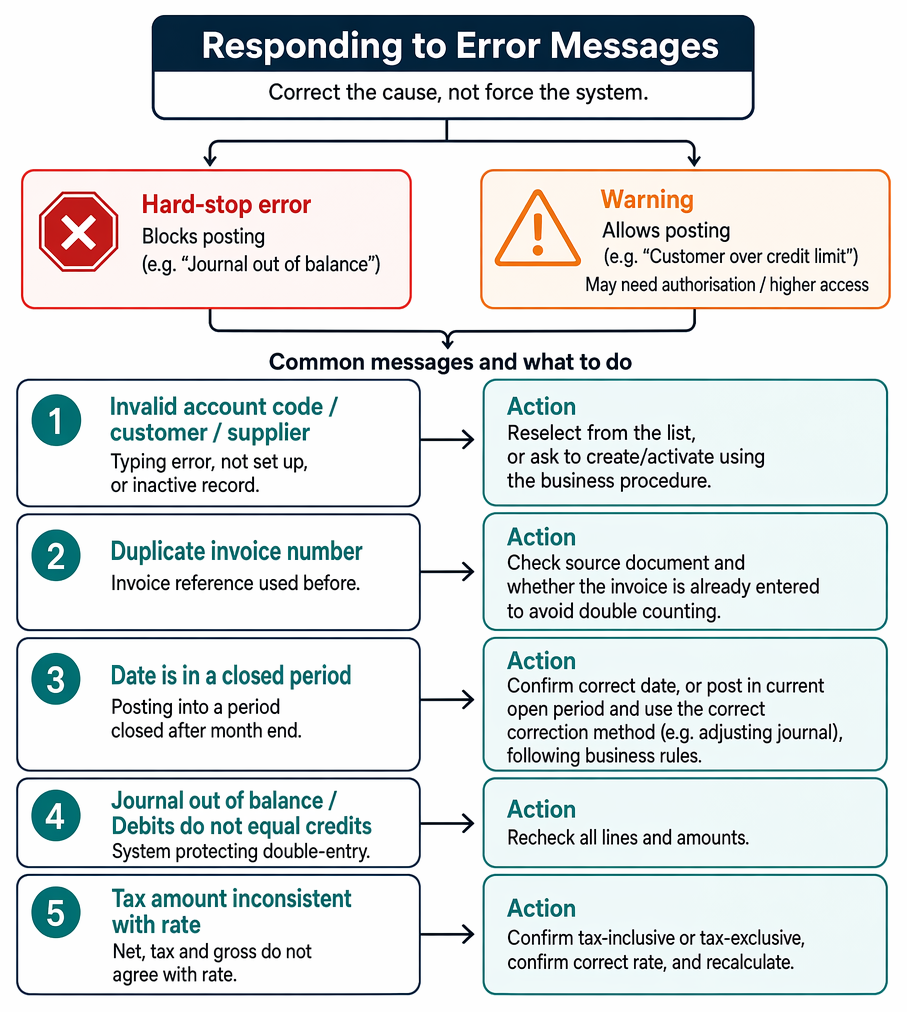
System configuration and automated checks indicate how valid codes, open periods, and batch totals reduce posting errors.
Hard-stop messages vs warnings
- A hard-stop error blocks posting (for example, “Journal out of balance”).
- A warning allows posting (for example, “Customer over credit limit”) but may require authorisation or a user with higher access rights.
Common messages you should recognise for FA1
- “Invalid account code / customer / supplier”
Usually caused by a typing error, a code not yet set up, or an inactive record. Action: reselect from the list, or ask for the record to be created/activated using the business procedure.
- “Duplicate invoice number”
Often means the invoice reference has been used before. Action: check the source document and check whether the invoice has already been entered (to avoid double counting).
- “Date is in a closed period”
You are trying to post into a period that has been closed after month end. Action: confirm the correct date, or post into the current open period and use the correct correction method if needed (for example, an adjusting journal), following business rules.
- “Journal out of balance” / “Debits do not equal credits”
The system is protecting double-entry. Action: recheck all lines and amounts.
- “Tax amount inconsistent with rate”
Net, tax, and gross do not agree with the tax code/rate. Action: confirm the invoice is tax-inclusive or tax-exclusive, confirm the correct rate, and recalculate.
Worked Example 1.1
You enter a journal to record rent paid by bank:
- Dr Rent expense £1,200
- Cr Bank £1,020
The system shows: “Journal out of balance by £180.”
Answer:
Total debits are £1,200 and total credits are £1,020, so credits are short by £180. The most likely cause is a typing error in the bank credit. Amend the credit to £1,200 so that:
Worked Example 1.2
A supplier invoice total is £120 including sales tax at 20%. While entering it, you type:
- Net £120
- Tax £24
The system shows: “Tax does not match rate.”
Answer:
If £120 is tax-inclusive at 20%, the net is:
Tax is £120 − £100 = £20. Enter Net £100 and Tax £20 (Gross £120).
Correcting errors while keeping a clear record
Software may allow you to edit or delete unposted transactions. Once posted, many businesses prefer corrections that leave a record of what happened.
Key Term: audit trail
A record created by the system that shows who entered or changed data, what was changed, and when it was changed.
Typical correction methods include:
- A credit note to correct a sales invoice error
- A supplier credit note or amended invoice to correct a purchase invoice error
- A correcting journal to reclassify an amount to the correct account
When the right account code is not yet known
Sometimes a transaction must be recorded promptly, but you are unsure of one side of the entry. Some systems allow temporary posting to a suspense account, followed by a later reclassification once the correct account is confirmed.
Key Term: suspense account
A temporary general ledger account used to hold an amount until the correct posting is confirmed, so that the double-entry can be completed.
Using reports to spot input problems
Many systems generate lists that help you find errors or unusual items for review.
Key Term: exception report
A report that lists items outside expected rules, such as negative balances, unusual discounts, missing references, or customers over credit limit.Exam Warning: Do not assume “no error message” means “correct accounting”. A wrong (but valid) code can still be accepted and the trial balance can still balance.
Revision Tip: Practise explaining, in one or two sentences, what each common error message means and the first check you would perform (source document, code list, period, totals, or tax rate).
Key Point Checklist
This article has covered the following key knowledge points:
- System setup (codes, standing data, periods, and tax settings) reduces posting errors
- Validation checks test input rules such as completeness, format, and logic
- Existence checks stop posting to codes that are not set up
- Range and limit checks control dates, quantities, discounts, and credit limits
- Batch control totals help ensure all documents are entered and totalled correctly
- Common error messages point to specific problems (codes, dates, duplicates, balance, tax)
- Corrections should keep a clear record, often by credit note or journal rather than deletion
- Audit trails and exception reports support checking and follow-up
Key Terms and Concepts
- standing data
- validation check
- input mask
- existence check
- range check
- limit check
- control total
- audit trail
- suspense account
- exception report